Data Sources
Understanding data processing and management in Ragnerock.
Data sources are the foundation of Ragnerock. You can ingest documents (PDFs, Word, PowerPoint), spreadsheets (Excel, CSV), plain text, HTML, and more. This guide explains how to upload and manage your data, how processing works, and how to browse your data library.
Supported Formats
- PDF: Research reports, filings, presentations
- Word: .docx and .doc files
- Excel: Spreadsheets with structured data (.xlsx, .csv)
- PowerPoint: Slide decks
- Text: Plain text and markdown files
- HTML: Web pages and articles
Processing Pipeline
When you upload a file, Ragnerock processes it through several stages:
1. Ingestion
The file is securely uploaded and stored in your project’s storage. Ragnerock validates the format and prepares it for processing.
2. Text Extraction
Text and structure are extracted from the file. For PDFs, this includes:
- Full text content
- Page boundaries
- Tables and figures
- Headers and footers
- Embedded images (charts, diagrams, exhibits) — automatically summarized into text descriptions and spliced inline into the page content. See Embedded Images in PDFs for details.
For spreadsheets, rows, columns, and sheet structure are preserved.
3. Chunking
The content is split into semantic chunks optimized for:
- Vector embedding generation
- Context window limits
- Search relevance
4. Embedding Generation
Each chunk is converted into a vector embedding, enabling semantic search across your data library.
Working with Data Sources
Uploading
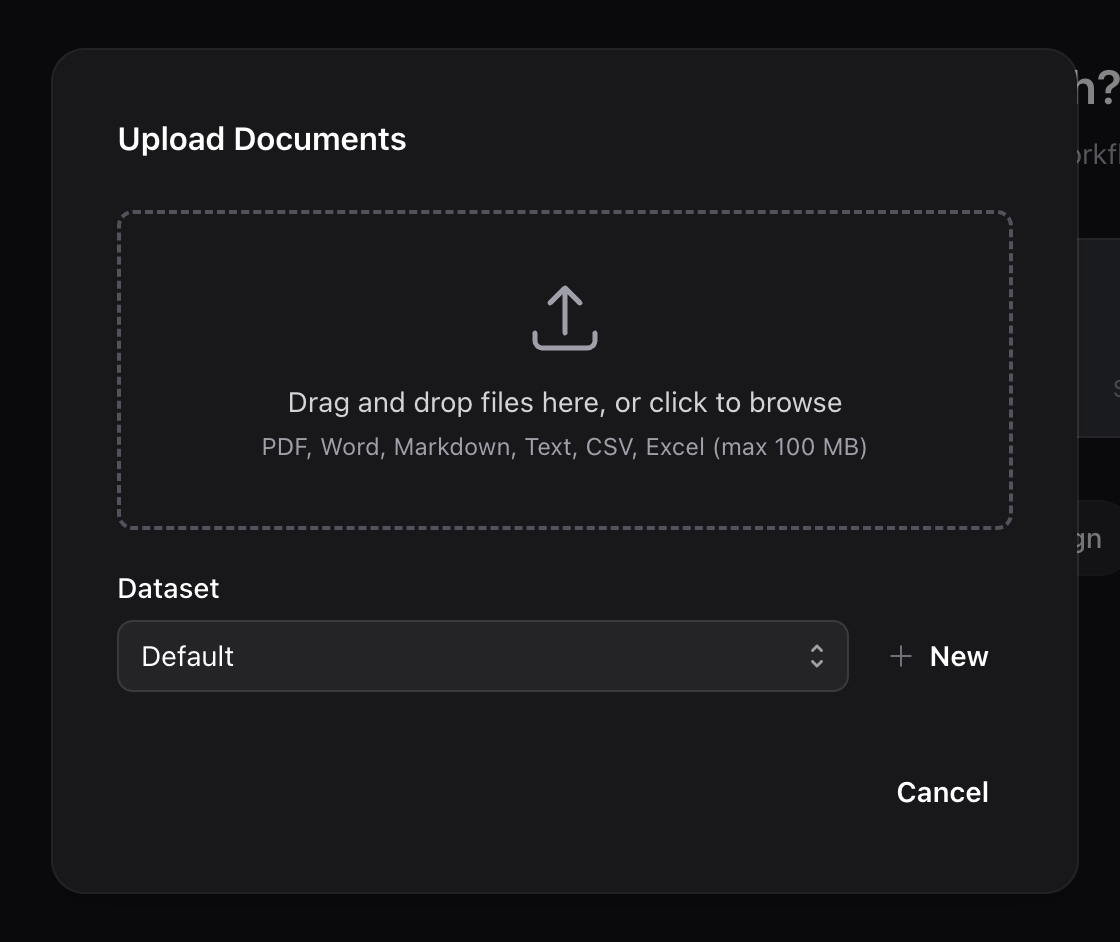
Click the Upload button in the sidebar or on the welcome screen. The upload dialog lets you:
- Drag and drop files into the upload area, or click Browse to select files
- Select multiple files for batch upload
- Optionally assign files to a dataset (logical group) for organization
- Click Upload to start processing
You can continue working while files process in the background.
Processing Status
Each data source in the dataset view shows a status badge:
| Status | Badge | Meaning |
|---|---|---|
| Pending | Gray | Queued for processing |
| Processing | Blue spinner | Currently being processed |
| Ready | Green checkmark | Processing completed successfully |
| Error | Red indicator | Processing failed |
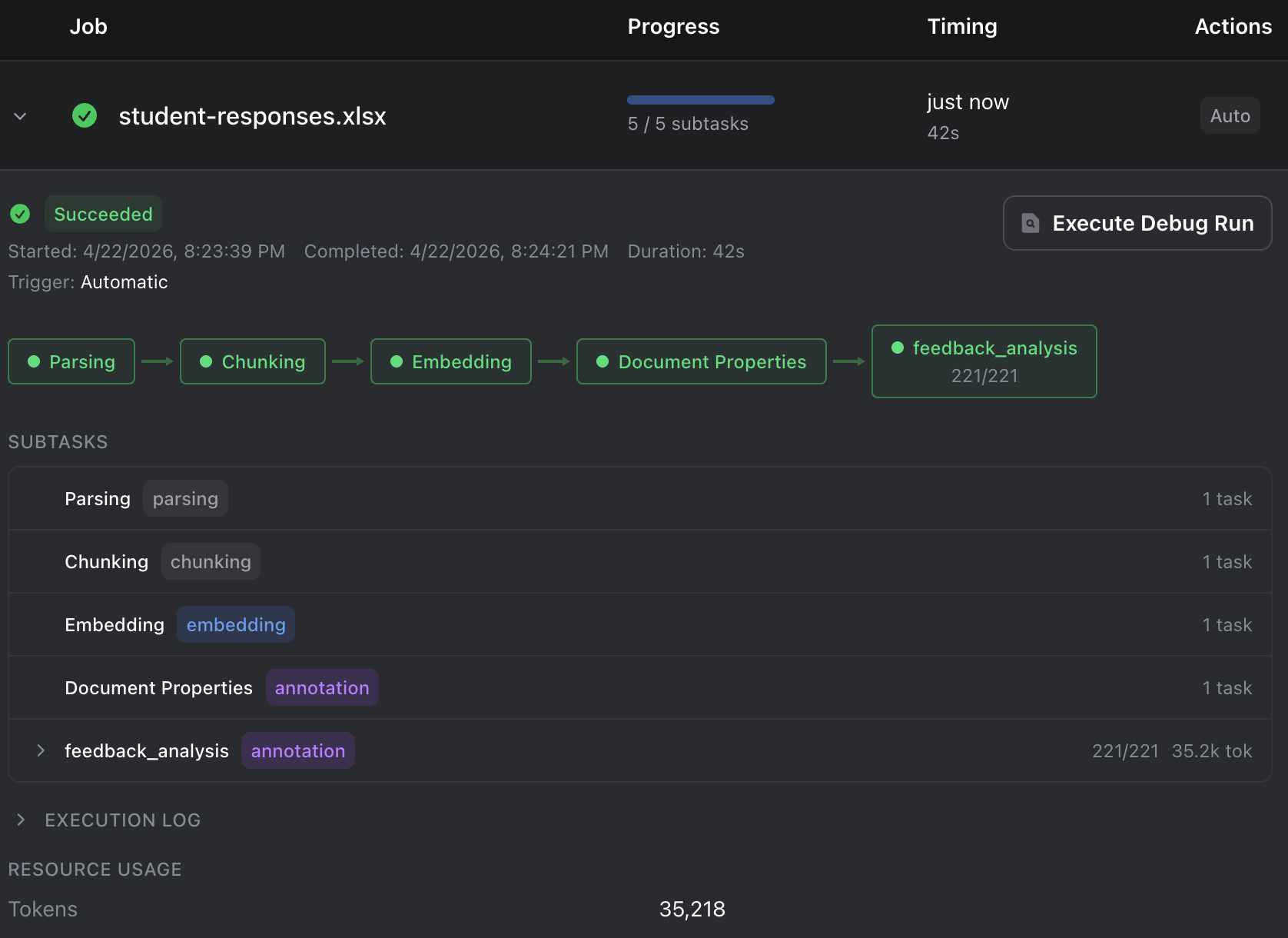
The badge is a quick indicator. For detailed processing information (timelines, logs, and error details), open the Jobs dashboard from the sidebar.
Browsing Data
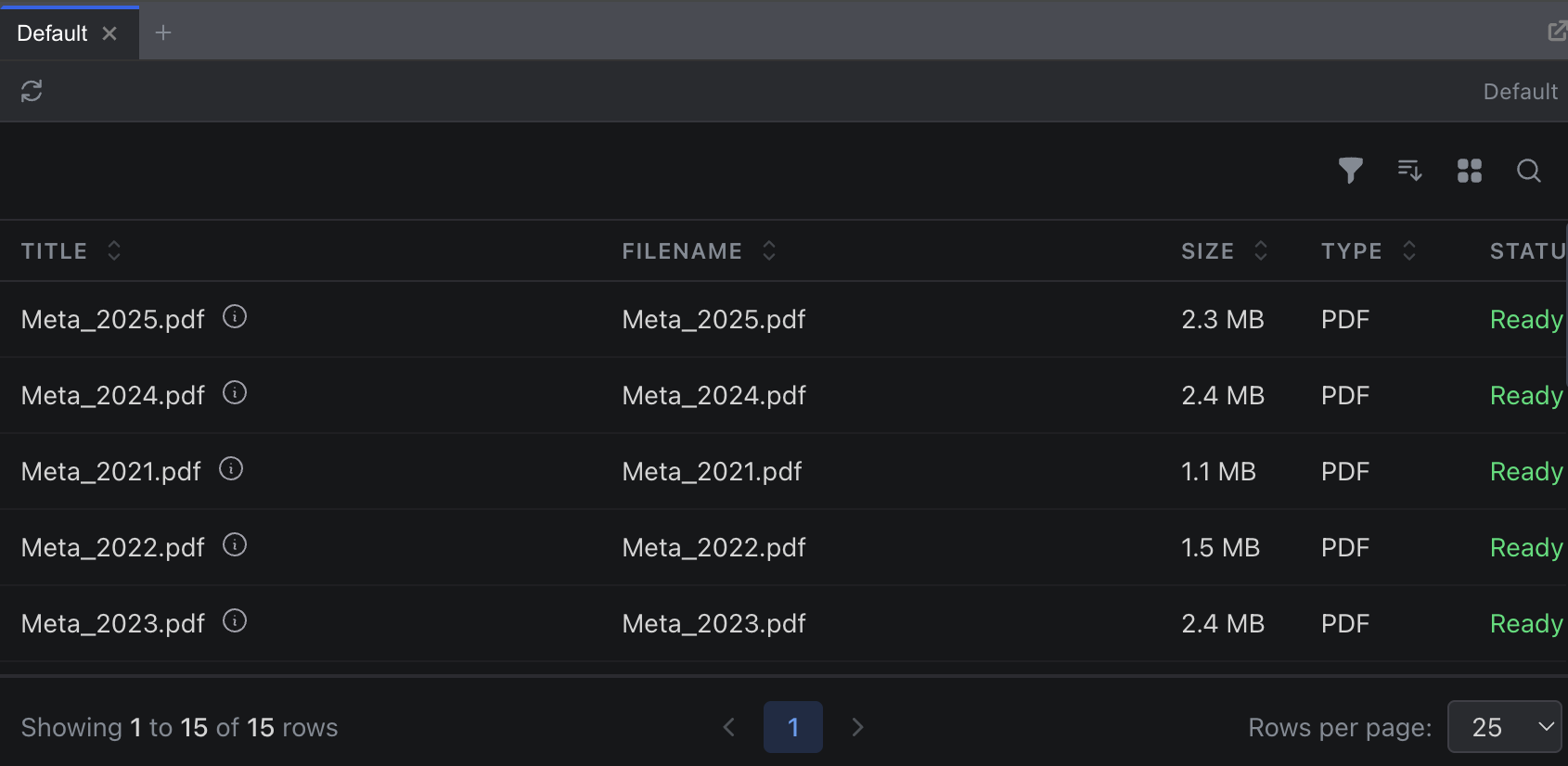
The Data section in the sidebar provides access to your data library. Click Data to open a flyout showing your datasets and recent uploads. Click View all to open the full data explorer.
The data explorer displays your files organized by dataset, with options to:
- Search across file names
- Filter by dataset, file type, or upload date
- Sort by name, date, or size
- Click any file to open it in the viewer
Viewing Content
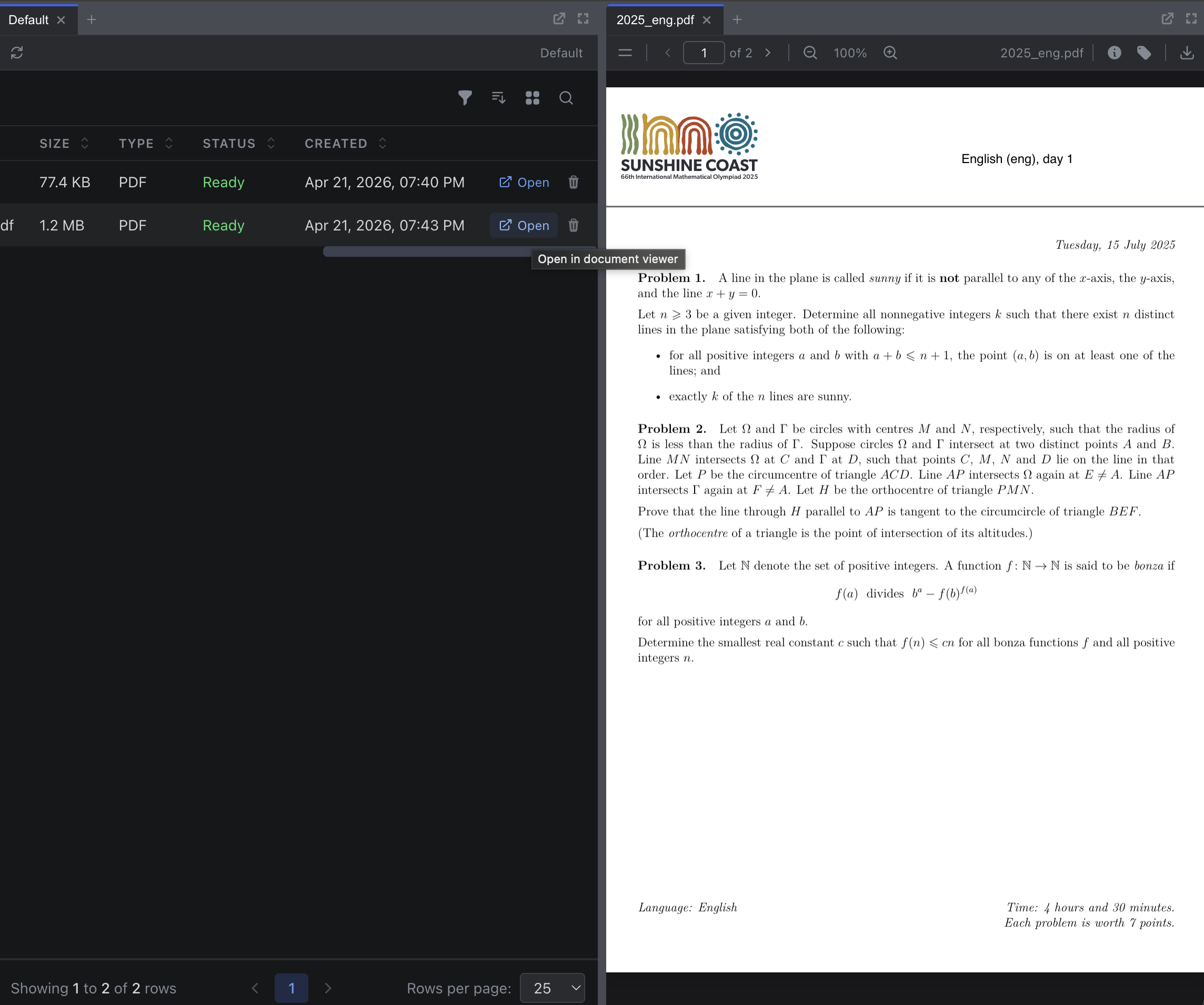
Click on a file in the data explorer to open the document viewer. The viewer provides:
- Text display: The full extracted text, rendered with original formatting
- Page navigation: For PDFs, browse page by page with a page selector
- Metadata panel: File name, type, size, upload date, and processing status
The viewer supports multiple rendering modes depending on the file type: text, PDF (with zoom and page controls), spreadsheet (scrollable table), and HTML/Markdown.
Deleting Data Sources
Right-click a file in the data explorer and select Delete from the context menu. A confirmation dialog appears before the file is permanently removed.
Best Practices
- Use descriptive names: Make files easy to identify with clear, consistent naming
- Check the Jobs dashboard: Monitor processing status and handle errors
- Organize by dataset: Group related files into datasets for easier browsing and targeted workflow runs
- Wait for Ready status: Ensure files are fully processed before running workflows
Next Steps
- Learn about Annotations to process and analyze your data
- Explore Data Ingestion for advanced upload methods including web scraping
- See the Quick Start for a complete workflow example